
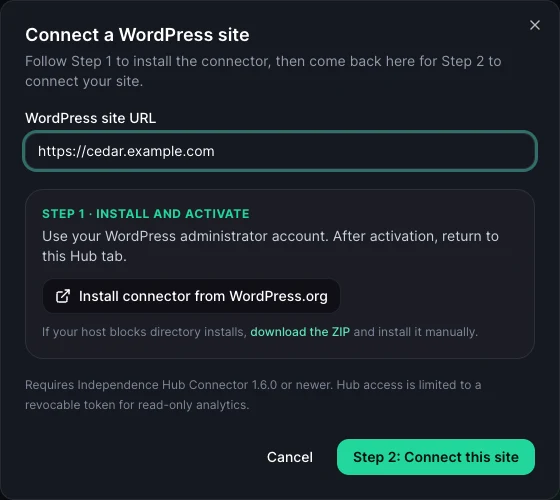
1. Install the connector on your WordPress site
You can also search for Independence Hub Connector under Plugins → Add New in WordPress. If your host blocks directory installs, use the download the ZIP link and upload it through Plugins → Add New → Upload Plugin.
- In the Hub, choose Add site and enter the full WordPress site URL.
- Choose Install connector from WordPress.org. A new tab opens on your site’s plugin installer; sign in as a WordPress administrator if needed.
- Install and activate Independence Hub Connector. Make sure Independent Analytics is also installed and active.
- Return to the original Hub tab. If the connector is already active, you can go straight to Step 2.
2. Approve the connection in WordPress
- Choose Step 2: Connect this site in the Hub.
- Sign in to the WordPress site as an administrator if prompted.
- Review the requesting Hub account and approve its read-only analytics connection.
- Wait for the return to Independence Hub, then confirm that the site appears under Connected sites.
Connect the same site to another Hub account
Start Add site while signed in to the other Hub account and approve that connection separately in WordPress. Each approval has its own token. In WordPress, Settings → Independence Hub Connector lists connected account emails and approval dates, with individual Disconnect buttons.
Each approval is listed separately, including repeat approvals for the same account. Older connections may not show an email until they are reconnected. Use the latest connector version for per-account connection management.
Reconnect after access is revoked
If a site card shows Disconnected, open its three-dot actions menu and choose Reconnect site. Complete the WordPress approval again, then refresh the dashboard. If that action is unavailable, start Add site with the same URL.
Keep Independent Analytics and the connector active. A cached snapshot may still be visible after a connection stops working; it is not proof that the current connection is healthy.
Remove a site or revoke access
- Remove from your Hub: open the site card’s three-dot menu, choose Remove site, and confirm. This removes the saved site from your account.
- Revoke access in WordPress: open Settings → Independence Hub Connector and choose Disconnect beside the account you want to revoke. Other accounts keep their access.
- For a complete disconnect, revoke the account’s connection in WordPress and remove its site card in the Hub.
- Uninstalling the connector removes its local connection records. It does not delete Independent Analytics data or already downloaded reports.