
Choose a growth tool
Growth has three tabs: Traffic watchlist, Growth targets, and Impact journal. Saved items are private to your account and apply to an individual connected site. Use Filter by site to narrow the list; the summary counts at the top cover all saved sites.
Checks run when you open Growth or choose Refresh analytics. Cached analytics may be up to 15 minutes old. Rules with email alerts enabled are also checked hourly in the background.
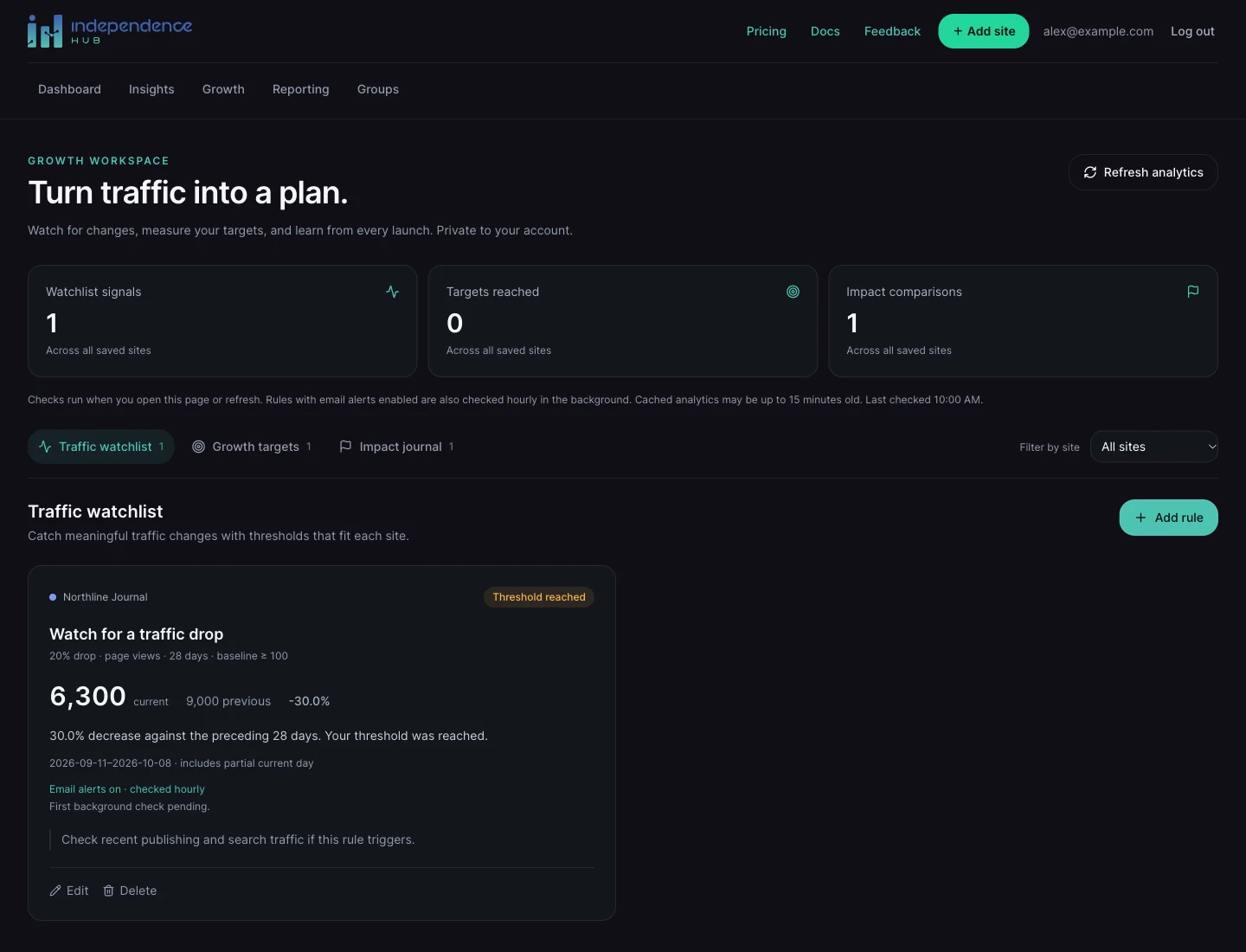
Create a traffic watchlist rule
Threshold reached means the configured change was detected. Within threshold means it was not. Waiting for data can mean the comparison period has not reached your minimum traffic requirement.
- Open Traffic watchlist and choose Add rule.
- Give the rule a title and choose a site, metric, and rolling reporting range.
- Choose Percentage drop or Percentage spike, then set the threshold.
- Set Minimum preceding-period traffic so very small baselines do not generate noisy signals. For example, watch for a 20% page-view drop over 7 days only when the preceding 7 days had at least 100 views.
- Optionally select Email me when this rule is triggered and add notes.
- Choose Save item. Read the resulting state and comparison on the saved card.
Control email alerts
Email alerts are off by default. Enabling them sends a notification to your verified Hub account email when a background check finds the rule triggered, even while the Hub is closed.
The rule is checked hourly. Emails are limited to one per triggered episode and at most once every 24 hours. A continuing drop does not send another email every hour. The card shows background-check and last-email information when available.
To stop emails, choose Edit on the rule, uncheck Email me when this rule is triggered, and save. You can also delete the rule after confirming its removal.
Set a rolling traffic target
- Open Growth targets and choose Add target.
- Choose the site, metric, rolling range, and target total. For example, aim for 10,000 page views over the last 28 days.
- Save the item and review its progress bar and remaining gap.
- Use Edit to adjust the target as your goals change.
Record a launch or campaign
The journal compares seven complete days before the event with seven complete days after it, excluding the event day. Both windows must be present in the last 90 days of traffic. Missing days are not counted as zero.
Waiting for data means the after window is incomplete. Needs attention may mean the required dates or fresh analytics are unavailable. A change in traffic alone does not prove that the event caused it.
- Open Impact journal and choose Record event.
- Enter a title, site, and event date in the site’s timezone. Add a note about what changed.
- Save the event. The comparison becomes ready once seven complete days after the event are available.
- Compare the before and after page views and percentage change, alongside your notes.